> ## Documentation Index
> Fetch the complete documentation index at: https://kwala.network/docs/llms.txt
> Use this file to discover all available pages before exploring further.
# Get Kwala Credits
> Learn how to purchase and manage Kwala credits for workflow execution
Kwala uses a credit-based model for your workflow executions. Credits are consumed for trigger executions, workflow activations, API calls, cross-chain transactions, and stateful write operations. This guide explains how to acquire, manage, and monitor your Kwala credits.
## Prerequisites
Before purchasing Kwala credits, ensure you have:
* **MetaMask wallet** installed and configured
* Your wallet configured for **BNB Smart Chain network**
* **USDT** tokens on BNB Smart Chain for payment
## How to purchase Kwala credits
There are two methods for purchasing Kwala credits using USDT on BNB Smart Chain. To get started, navigate to [payments.Kwala.network](https://payments.Kwala.network/).
**Network**: All transactions are processed on **BNB Smart Chain**. Ensure you have USDT on BSC network.
 ## Method 1: Wallet swap (recommended)
The Wallet Swap method allows you to directly swap USDT for Kwala credits from your connected wallet. It works well when you already have USDT in your connected wallet and want Kwala credit instantly credited into your account.
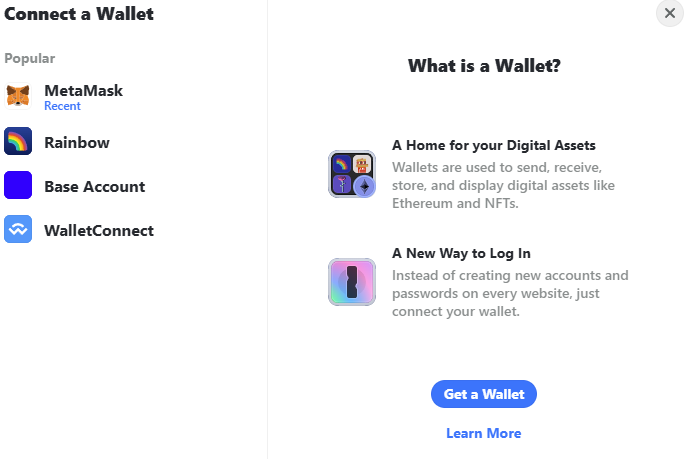
Visit [payments.Kwala.network](https://payments.Kwala.network/) and select **Connect Wallet**. A pop up appears, where you select your wallet from the available options and approve the connection.
## Method 1: Wallet swap (recommended)
The Wallet Swap method allows you to directly swap USDT for Kwala credits from your connected wallet. It works well when you already have USDT in your connected wallet and want Kwala credit instantly credited into your account.
Visit [payments.Kwala.network](https://payments.Kwala.network/) and select **Connect Wallet**. A pop up appears, where you select your wallet from the available options and approve the connection.
 On the payment portal, ensure the **Wallet Swap** tab is selected (it should be active by default).
In the **You Pay** field:
* Enter the amount of USDT you want to swap
* Your wallet balance will be displayed for reference
* The **You Receive** field will automatically display the Kwala credits you'll get
* Enter your wallet address in the **Recipient Wallet Address** field
On the payment portal, ensure the **Wallet Swap** tab is selected (it should be active by default).
In the **You Pay** field:
* Enter the amount of USDT you want to swap
* Your wallet balance will be displayed for reference
* The **You Receive** field will automatically display the Kwala credits you'll get
* Enter your wallet address in the **Recipient Wallet Address** field
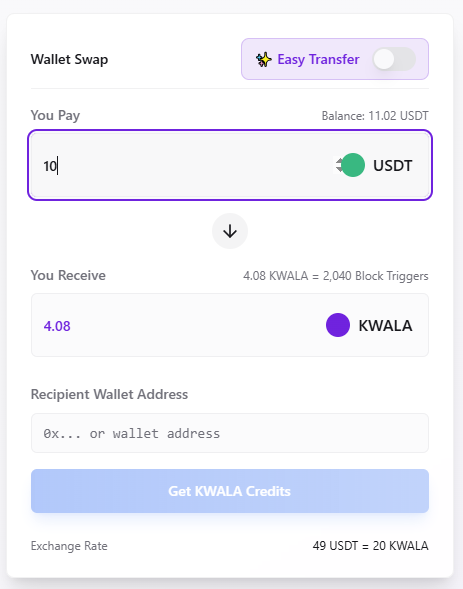 Verify the following information:
* **You Pay**: Amount in USDT
* **You Receive**: Equivalent Kwala credits
* **Block Triggers**: Number of block triggers included
* **Exchange Rate**: Current conversion rate (49 USDT = 20 Kwala)
Select the **Get Kwala Credits** button and approve the transaction in your wallet. The swap will be processed instantly on BNB Smart Chain.
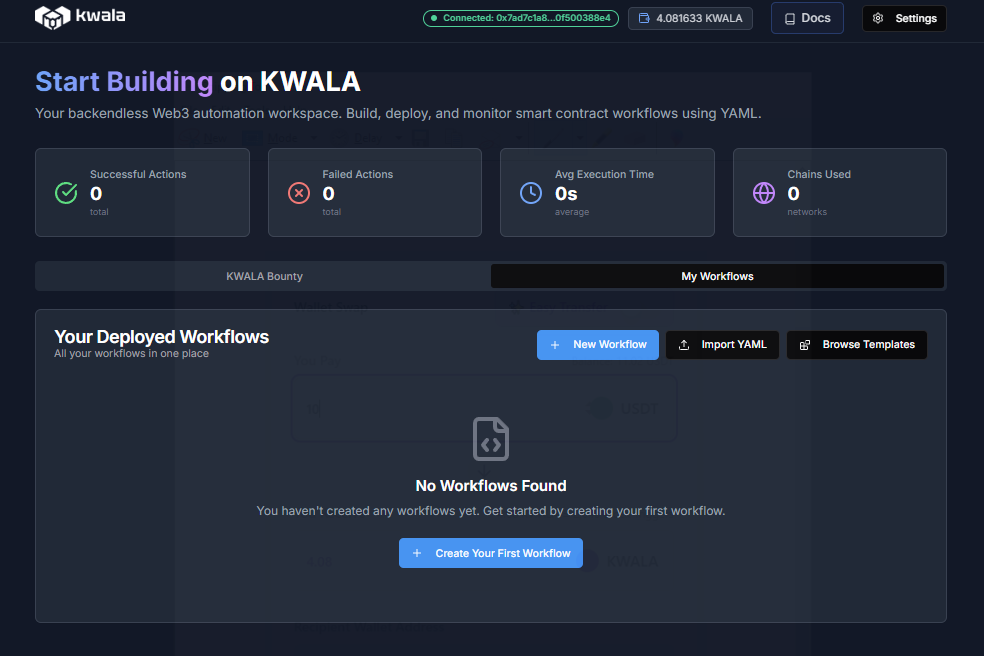
Once the transaction is confirmed, your Kwala credits will be added to your address immediately. Your credit balance will also reflect in the Kwala dashboard as shown:
Verify the following information:
* **You Pay**: Amount in USDT
* **You Receive**: Equivalent Kwala credits
* **Block Triggers**: Number of block triggers included
* **Exchange Rate**: Current conversion rate (49 USDT = 20 Kwala)
Select the **Get Kwala Credits** button and approve the transaction in your wallet. The swap will be processed instantly on BNB Smart Chain.
Once the transaction is confirmed, your Kwala credits will be added to your address immediately. Your credit balance will also reflect in the Kwala dashboard as shown:
 ## Method 2: Easy transfer
The Easy transfer method allows you to send USDT from any wallet to purchase Kwala credits for a specific recipient address.
Visit [payments.Kwala.network](https://payments.Kwala.network/) and select "Connect Wallet" to access the portal.
Use the toggle button to switch to the **Easy Transfer** tab to change the payment method.
## Method 2: Easy transfer
The Easy transfer method allows you to send USDT from any wallet to purchase Kwala credits for a specific recipient address.
Visit [payments.Kwala.network](https://payments.Kwala.network/) and select "Connect Wallet" to access the portal.
Use the toggle button to switch to the **Easy Transfer** tab to change the payment method.
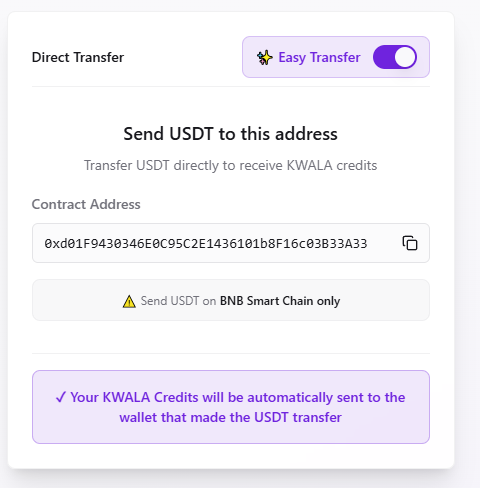 Copy the provided USDT payment address displayed on the Easy Transfer page.
Open your wallet and send the desired amount of USDT to the copied address on BNB Smart Chain. The amount you send will determine how many Kwala credits you receive based on the current exchange rate.
Once you've sent the USDT, Kwala credits will be automatically credited to the wallet address that made the transfer. Your credit balance will reflect on the Kwala dashboard.
Double-check the recipient Kwala address when using Easy Transfer. Transactions cannot be reversed once confirmed.
## Workflow execution and credit deduction
Every time you run a Kwala workflow, credits are automatically deducted from your Kwala address:
* Kwala deducts flat credits for workflow creation and trigger execution
* Failed workflows may still consume minimal credits for processing
* Monitor your balance and usage on the Kwala Dashboard or explorer
* Get notified when your credit balance runs low to avoid workflow interruptions
Ensure you have sufficient credits in your Kwala address before executing workflows. You can recharge at any time through the Kwala Payments page.
## Monitor your credits
You can monitor your credits usage in real-time on the Kwala dashboard. From the dashboard, you can view your current credit balance in your wallet and track credit deductions for each workflow execution. Kwala also allows you to set up notification alerts when credits are running low. If you'd like detailed insights into the transaction logs, use the [Kwala Explorer](https://Kwala-explorer.lovable.app/)
## Credit pricing
For detailed pricing information and credit packages, visit our [pricing page](https://Kwala.network/pricing).
## Frequently asked questions about Kwala Credits
No, Kwala credits do not expire. They remain in your account until used.
Please refer to our terms of service for refund policies.
Failed workflows may consume minimal credits for the processing attempt, but not the full execution cost.
Credits are tied to your Kwala address and cannot be transferred.
Contact our [support team](/support/faq) for assistance with credits and billing.
## Next steps
Create your first workflow
Understand execution limits
Copy the provided USDT payment address displayed on the Easy Transfer page.
Open your wallet and send the desired amount of USDT to the copied address on BNB Smart Chain. The amount you send will determine how many Kwala credits you receive based on the current exchange rate.
Once you've sent the USDT, Kwala credits will be automatically credited to the wallet address that made the transfer. Your credit balance will reflect on the Kwala dashboard.
Double-check the recipient Kwala address when using Easy Transfer. Transactions cannot be reversed once confirmed.
## Workflow execution and credit deduction
Every time you run a Kwala workflow, credits are automatically deducted from your Kwala address:
* Kwala deducts flat credits for workflow creation and trigger execution
* Failed workflows may still consume minimal credits for processing
* Monitor your balance and usage on the Kwala Dashboard or explorer
* Get notified when your credit balance runs low to avoid workflow interruptions
Ensure you have sufficient credits in your Kwala address before executing workflows. You can recharge at any time through the Kwala Payments page.
## Monitor your credits
You can monitor your credits usage in real-time on the Kwala dashboard. From the dashboard, you can view your current credit balance in your wallet and track credit deductions for each workflow execution. Kwala also allows you to set up notification alerts when credits are running low. If you'd like detailed insights into the transaction logs, use the [Kwala Explorer](https://Kwala-explorer.lovable.app/)
## Credit pricing
For detailed pricing information and credit packages, visit our [pricing page](https://Kwala.network/pricing).
## Frequently asked questions about Kwala Credits
No, Kwala credits do not expire. They remain in your account until used.
Please refer to our terms of service for refund policies.
Failed workflows may consume minimal credits for the processing attempt, but not the full execution cost.
Credits are tied to your Kwala address and cannot be transferred.
Contact our [support team](/support/faq) for assistance with credits and billing.
## Next steps
Create your first workflow
Understand execution limits