

Type of triggers in Kwala workflows
Kwala supports multiple trigger types that can be used individually or combined:- Event-based - React to on-chain events in real-time
- Time-based - Execute workflows on a schedule
- Recurring - Continuously monitor and respond to events
- API-based - Start a workflow from an inbound HTTP request
Event-based triggers
Event-based triggers listen for specific blockchain events and execute workflows when those events occur.Basic event trigger
The following example demonstrates a basic event-based trigger that monitors a smart contract on Ethereum mainnet forTransfer events. Whenever tokens are transferred from the specified contract, this trigger will activate the workflow.
Transfer event is emitted from the specified contract.
Filtered event trigger
The following example shows how to add filters to narrow down which events trigger your workflow. This configuration only activates when transfers come from a specific address and exceed 1 token in value, reducing unnecessary executions.- Exact match:
"0xAddress..." - Greater than:
">value" - Less than:
"<value" - Range:
">=value,<=value" - Multiple values:
["value1", "value2"]
Time-based triggers
Execute workflows at specific times or intervals without requiring on-chain events.Interval-based execution
The following example configures a time-based trigger that executes the workflow every hour (3600 seconds). This is useful for periodic tasks like checking balances, updating oracle prices, or performing maintenance operations.- Every minute:
"60" - Every hour:
"3600" - Every day:
"86400" - Every week:
"604800"
Cron-style scheduling
The following example uses cron notation to schedule workflow execution at midnight every day. Cron patterns provide more flexibility for complex scheduling needs compared to simple intervals.- Every day at 9 AM:
"0 9 * * *" - Every Monday:
"0 0 * * 1" - Every 6 hours:
"0 */6 * * *" - First day of month:
"0 0 1 * *"
Delayed execution
The following example delays workflow execution until a specific Unix timestamp is reached. This is useful for scheduled launches, time-locked operations, or coordinated events.Recurring triggers
Recurring triggers continuously monitor for events and re-execute the workflow each time the event occurs. The following example creates a recurring trigger that monitors a Polygon contract for deposit events where the amount exceeds 100 million (in the token’s smallest unit). It checks every 60 seconds and executes the workflow each time a matching deposit is found.- Checks for new events every 60 seconds
- Executes the workflow when matching events are found
- Continues monitoring indefinitely
RepeatEvery: api. This exposes a second HTTP endpoint, with its own method, authentication, and schema, that re-runs the workflow each time it is called. See API triggers below.
API triggers (Web2 triggers)
API triggers start a workflow from outside the blockchain. Instead of waiting for an on-chain event, price movement, or time interval, the workflow exposes an HTTP endpoint that any Web2 app, backend, webhook, or manual request can call. When a valid request arrives, Kwala runs the workflow’s actions on-chain. Use an API trigger to:- Start a workflow from a web/mobile app, a backend, or a cron job
- Turn a third-party webhook into an on-chain action
- Manually trigger a workflow for testing or ops
- Bridge any external system that can send an HTTP request into your Web3 automation
An API trigger swaps on-chain listening for an HTTP endpoint. Everything downstream — actions, execution mode, on-chain settlement — works like any other Kwala workflow.
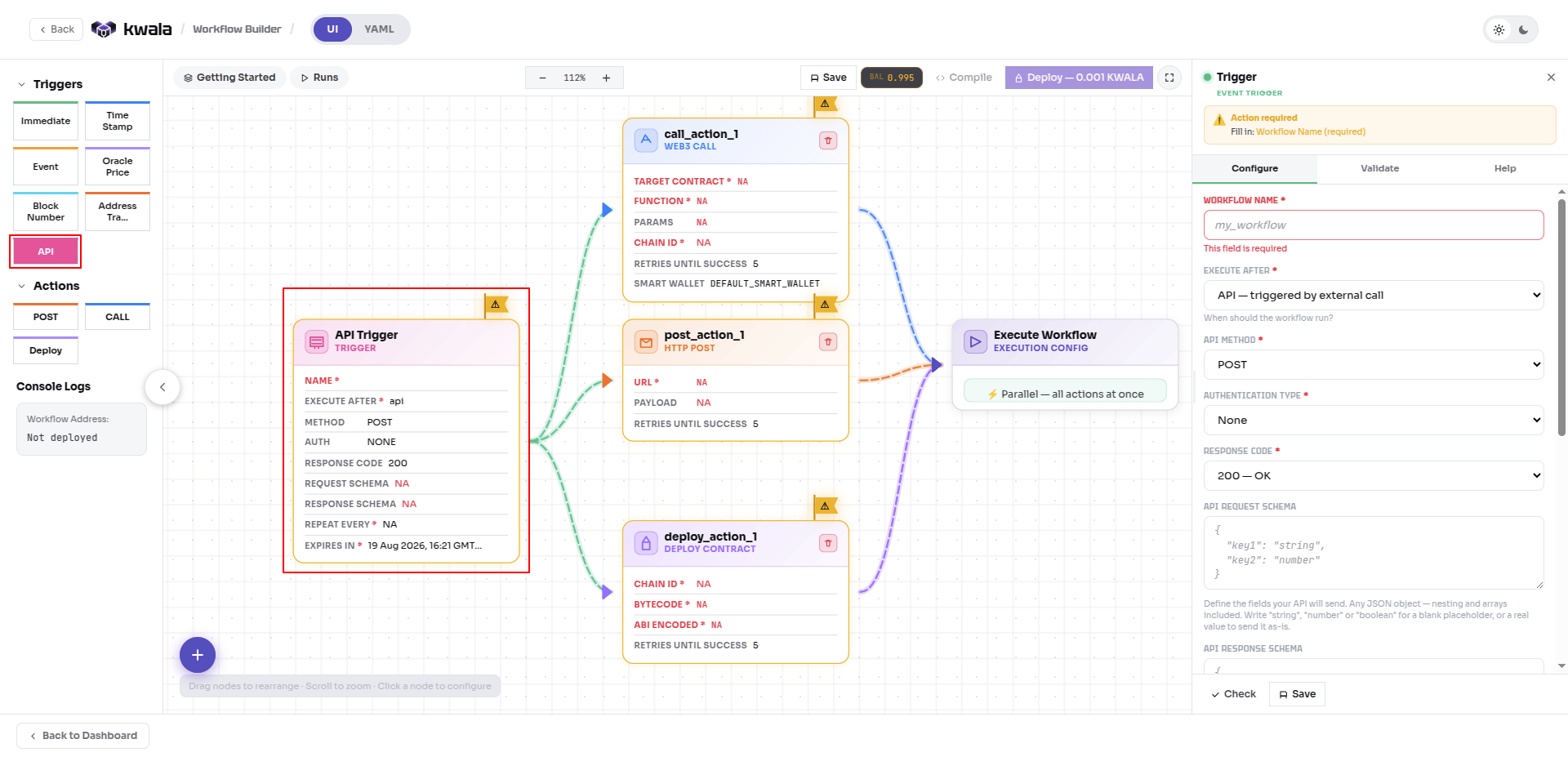
The two flows
Every API trigger exposes two independent endpoints, configured separately:- One-time flow (
ExecuteAfter: api) — the primary trigger; its endpoint starts the workflow when called. - Recurring flow (
RepeatEvery: api) — an optional secondary trigger; its endpoint can be called repeatedly to re-run the workflow.
POST with no auth for the one-time flow, PATCH with Basic auth for the recurring flow.
RepeatEvery need not be api; it supports any trigger type (event, price condition, or time interval). Setting RepeatEvery: api simply means the recurring flow is also driven by an HTTP call.Configuration fields
Configure an API trigger from the Trigger panel in the Workflow Builder. Select API as the trigger type, then set the following. API method — the HTTP method the endpoint accepts:
Authentication type — how Kwala verifies a request is allowed to trigger the workflow:
Use
None only for testing or public-safe endpoints. For any production endpoint that performs on-chain actions, always use Basic, Bearer, APIKey, or JWT.2xx success, 3xx redirection, 4xx client errors, 5xx server errors); most workflows use 200 — OK.
API request schema — the JSON shape Kwala expects in the request body. Write "string", "number", or "boolean" for a blank placeholder, or a real value to send it as-is.
API response schema — the JSON body Kwala returns to the caller after accepting the request.
Schema value rules. Inside a schema, strings are quoted and everything else is not (
age: 27, active: true, middleName: null). The words string, number, and boolean are type placeholders — they generate blank fields and cannot be sent as literal values. Anything else is passed through exactly as written.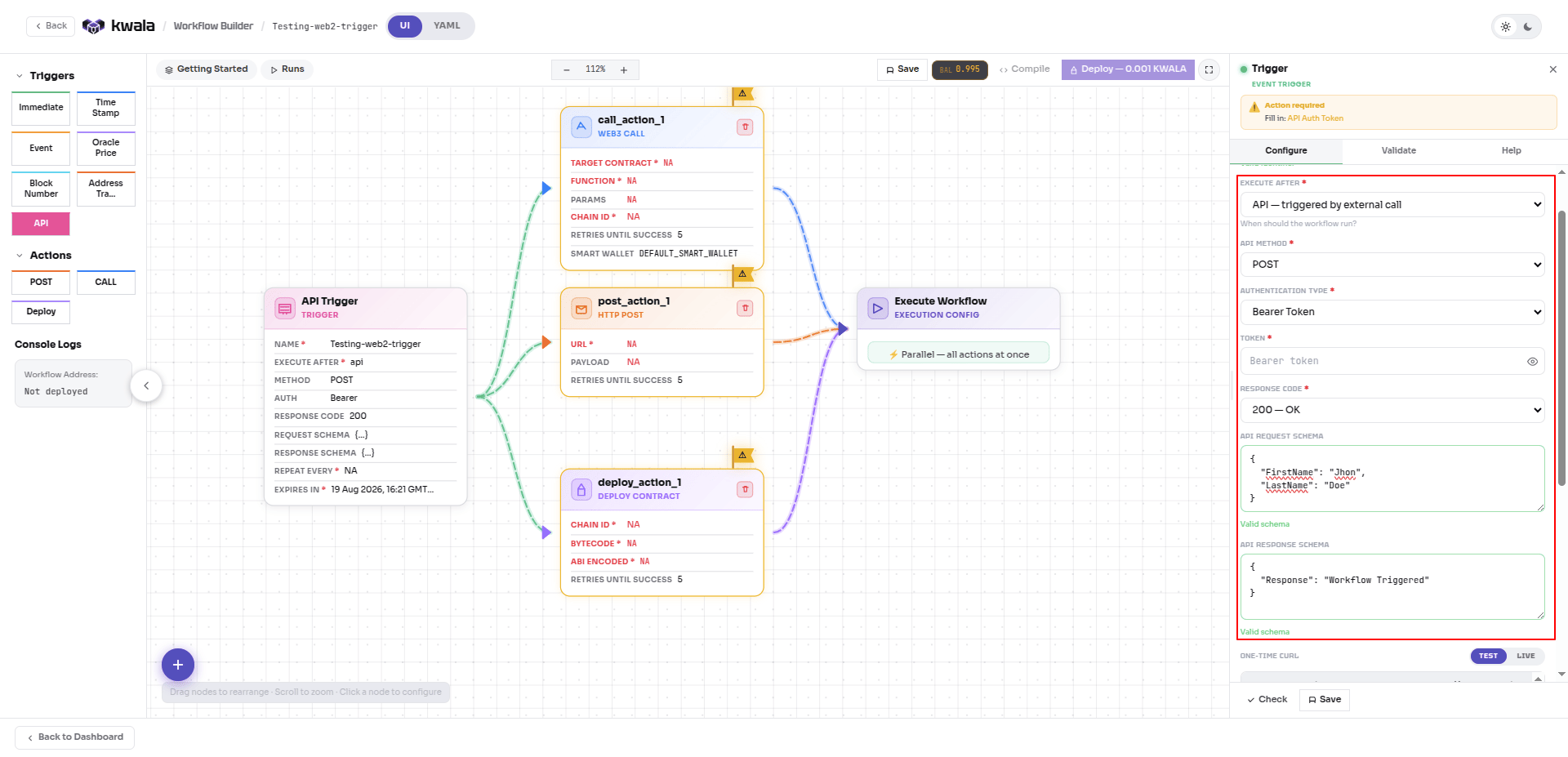
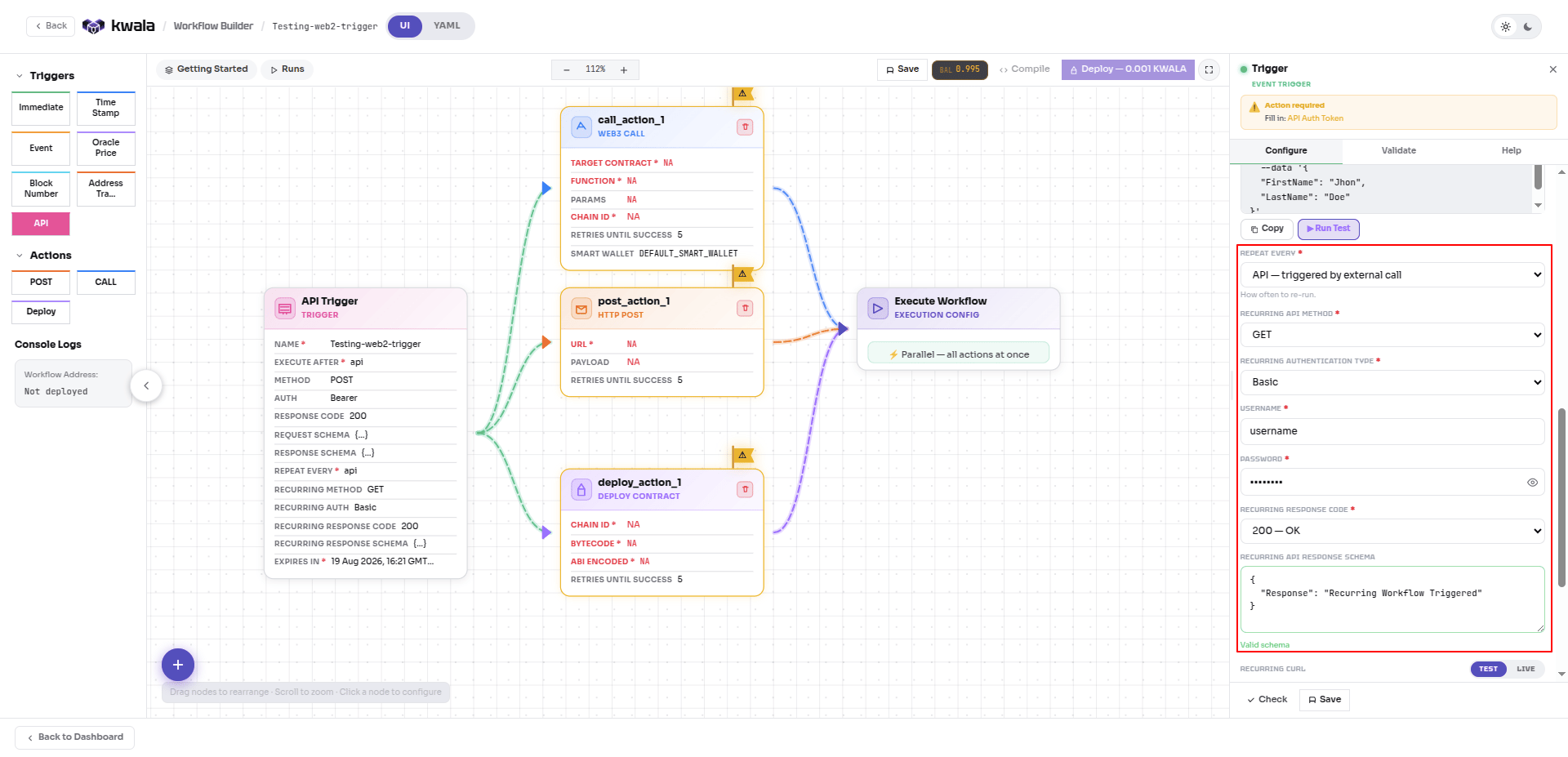
Method examples
Each example configures the one-time flow with a different HTTP method, paired with a different authentication type and response code, so you can see the full range. 1. GET with no authentication — takes no request body, open to any caller. Suitable for a public, read-safe trigger or for testing.201 — Created.
Authorization header, returns 200 — OK.
202 — Accepted.
200 — OK.
Generated YAML
After you configure the trigger in the builder, switch to the YAML toggle at the top of the editor to review the generated workflow definition. The following example shows a workflow with aPOST one-time flow and a PATCH recurring flow.
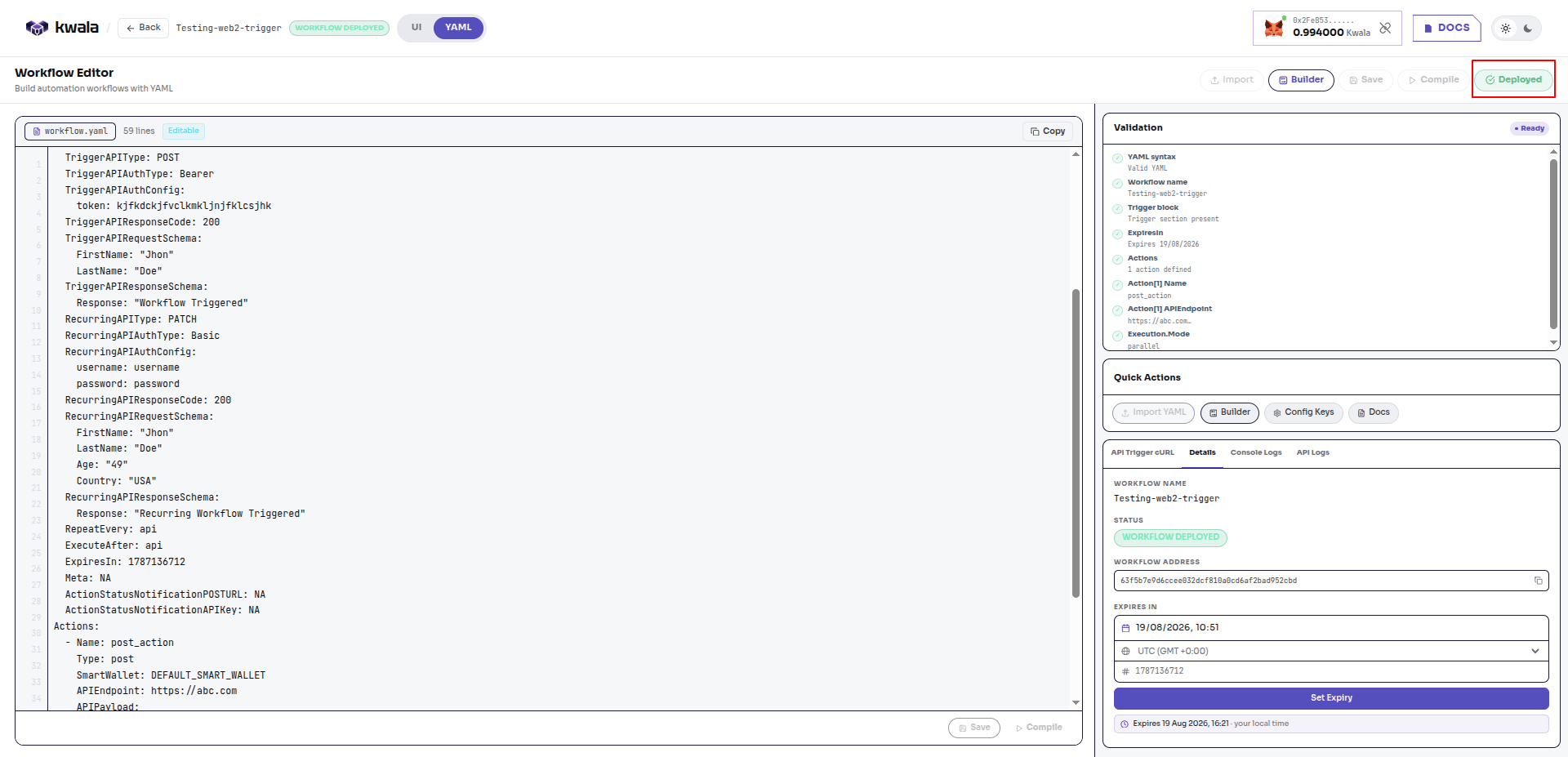
Using trigger data in actions
A workflow started by an API trigger can read values from the incoming request body and pass them into its actions usingre.object(\"<field>\"), written wherever an action expects a value. Kwala substitutes the matching field at run time.
Forward fields into an outbound API action:
- Types survive — a number arrives as a number, a boolean as a boolean.
- Nested objects and arrays come through whole; reference them once.
- The left-hand key is yours to rename; the argument inside
re.object()is the field in the incoming body. - References are not validated before deploy — a misspelled field compiles cleanly, then resolves empty or fails at run time. Check the Console Logs after your first test run.
GETandDELETEcarry no request body, so there is nothing forre.object()to read.
re.object() reads a named field from a JSON body (what an API trigger provides). Event triggers use re.event() for positional event data — different helpers for different input shapes.Lifecycle and expiry
Saving, compiling, and deploying an API trigger follows the same order as any workflow: Save stores the definition; Compile validates it as a dry run (nothing goes on-chain, and the button resets on any edit); Deploy puts it live, costs0.001 KWALA, and stays disabled until a clean compile. A duplicate workflow name blocks all three.
The workflow key in the trigger URL is your workflow name joined to your wallet address (<name>_<wallet>). It is generated at compile/deploy — do not construct it by hand.
API trigger workflows are automatically set to expire 1 day after deployment. Redeploy to keep a long-running endpoint active.
API trigger field reference
Trigger expiration
Set an expiration to automatically stop trigger monitoring. The following example configures a trigger that runs every hour but automatically stops monitoring at the specified Unix timestamp. This prevents indefinite execution and helps control costs.Expired triggers will not execute workflows, even if conditions are met. You’ll need to redeploy or update the workflow to reactivate it.
Combining triggers
You can combine different trigger types for more sophisticated workflows:Combine event and time-based triggers
You can use triggers to monitor events on multiple blockchains. The following example combines event-based and time-based triggers in a monitoring workflow. It watches for large transfer events but only between specific dates, checking every 5 minutes during the active period.Multi-chain monitoring
The following example demonstrates cross-chain monitoring by tracking related events on both Ethereum and Polygon. This is useful for bridge monitoring, cross-chain messaging, or coordinating actions across multiple networks.Trigger field reference
Webhook notifications
Get notified about workflow execution status via webhooks. The following example configures webhook notifications to receive real-time updates about workflow execution status. The workflow sends POST requests to your endpoint with execution details, status, and metadata.Best practices
- Choose the right trigger type
- Use event-based triggers for real-time reactions to on-chain events
- Use time-based triggers for scheduled maintenance or batch processing
- Use recurring triggers for continuous monitoring
- Use API-based triggers to start workflows from external Web2 systems
- Optimize check intervals - Balance responsiveness with cost:
- Critical monitoring: 30-60 seconds
- Regular monitoring: 5-15 minutes
- Batch processing: hourly or daily
- More frequent checks consume more credits
- Use filters effectively - Add filters to reduce unnecessary workflow executions:
- Filter by specific addresses
- Filter by value thresholds
- Filter by indexed event parameters
- Set appropriate expirations - Always set expiration dates to:
- Prevent runaway costs
- Ensure workflows don’t run indefinitely
- Allow for workflow updates and maintenance
- Test triggers thoroughly
- Start with shorter intervals during testing
- Verify filters match expected events
- Confirm webhook notifications work correctly
- Monitor webhook endpoints - Ensure webhook endpoints are:
- Always available (99.9%+ uptime)
- Protected with API keys
- Able to handle high request volumes
- Responding quickly (< 5 seconds)
- Secure your webhooks - Always use the
actionStatusNotificationAPIKeyfield to secure webhook notifications. Never expose webhook URLs publicly without authentication:- Use API keys for all webhook endpoints
- Validate webhook signatures in your backend
- Use HTTPS for all webhook URLs
- Implement rate limiting on webhook endpoints
- Log all webhook calls for audit purposes
- Set appropriate expiration dates
Next steps
Address Tracking
Monitor addresses for any on-chain activity
Working with Actions
Learn how to define workflow actions
Workflow Execution
Understand workflow execution flow
Use Cases
See triggers in real-world scenarios