

Prerequisites
- Completion of the steps in Configure workflow
- Your workflow loaded in the Workflow Editor
Review your workflow
The Workflow Builder generates a complete YAML automation script and opens it in the Workflow Editor for review, just click on the YAML toggle on top. Here, you can make any additional edits before compiling and deploying.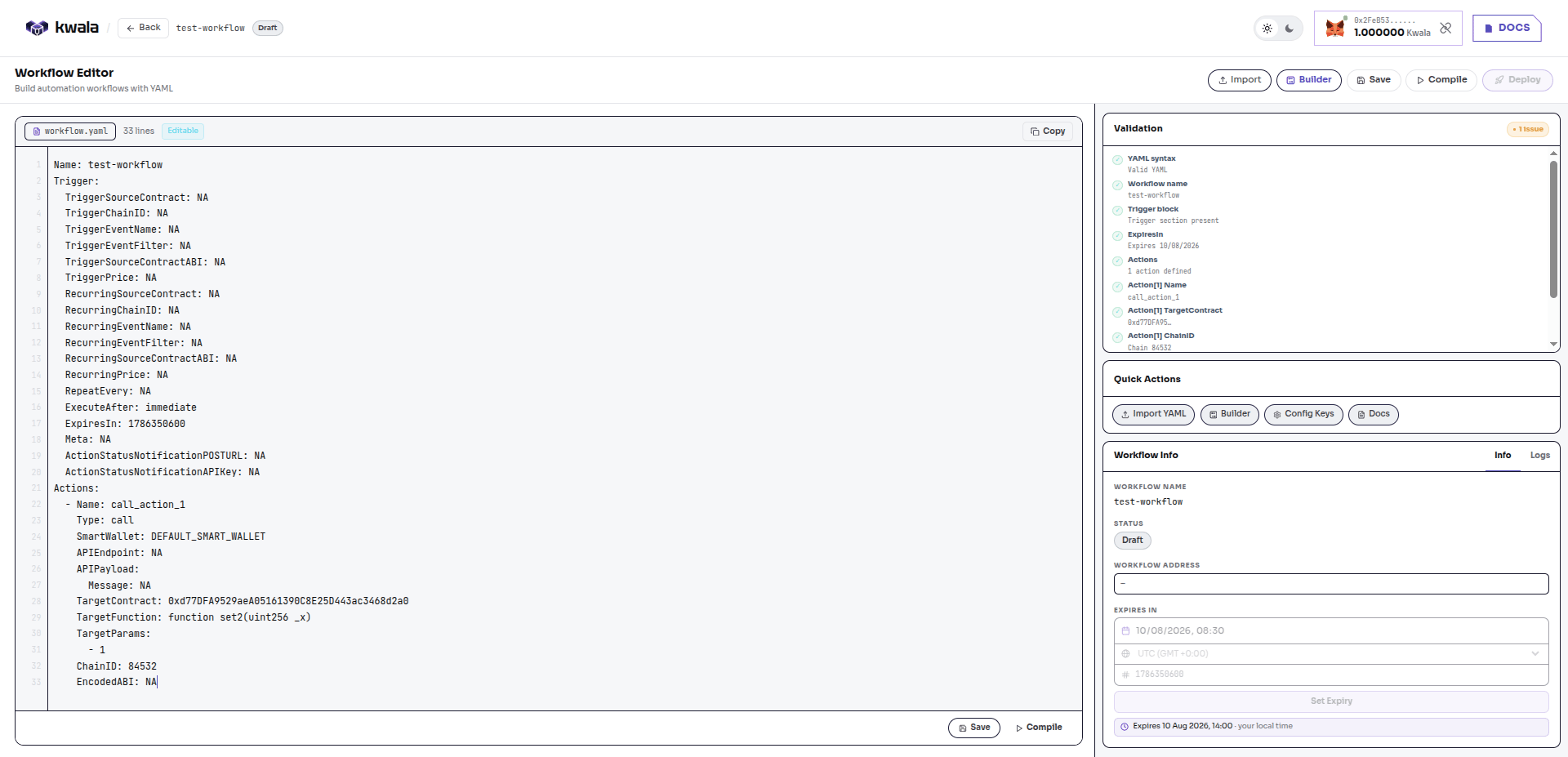
Compile your workflow
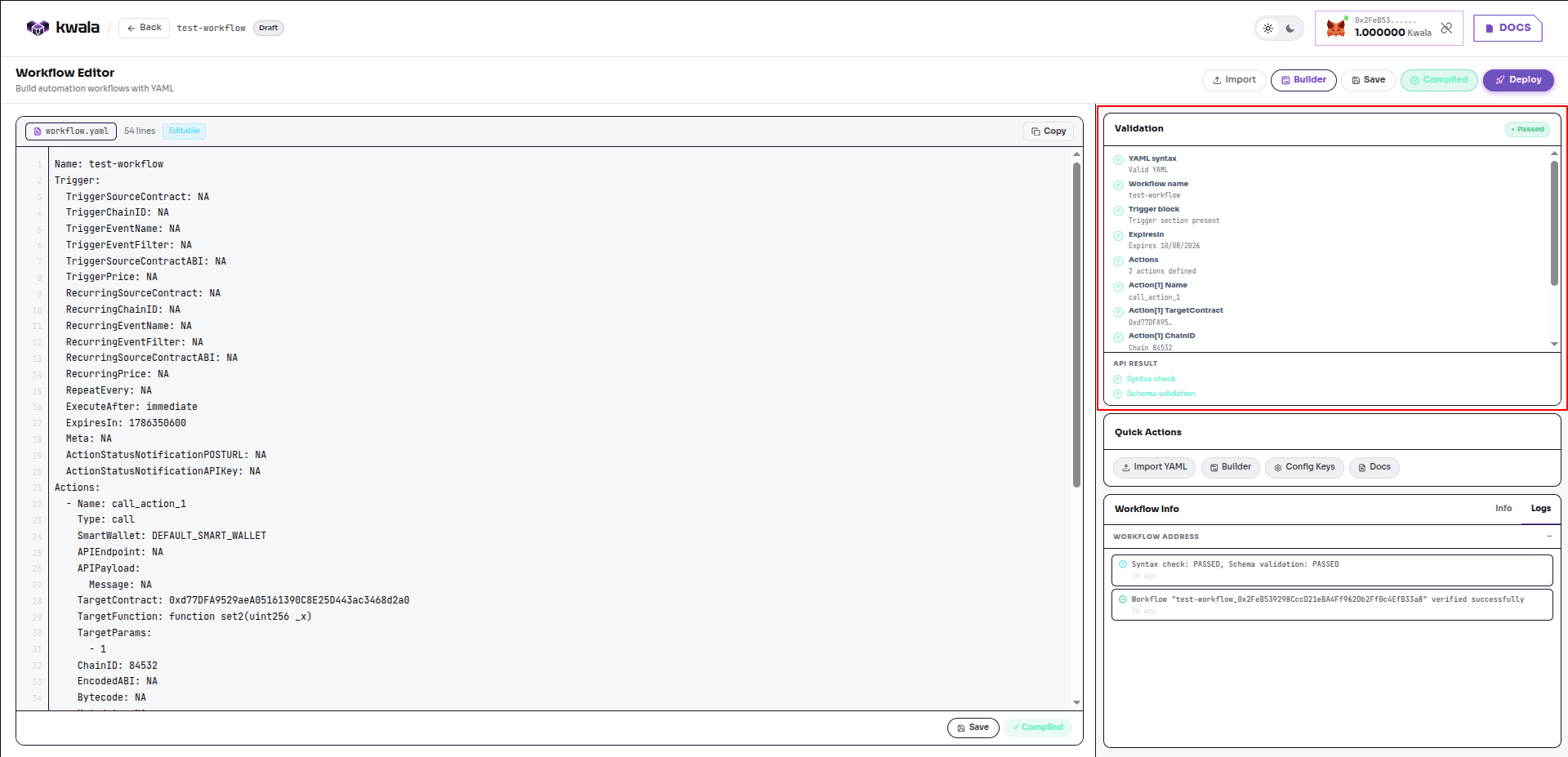
Use the Compile button to validate your workflow schema. This performs a syntax check that ensures your workflow structure is correct. Schema validation must pass for the workflow to run. A successful compile displays the message: “Workflow verified - Workflow has been successfully verified and compiled.”Review logs and validation
You can use the Logs tab under workflow Info to view all logs and debug any issues.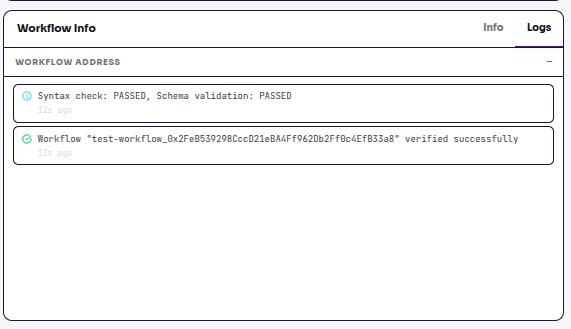
Save your workflow
Once everything is working correctly, select Save. When you select Save, your wallet window pops up. Here, you approve the save transaction. This is part of signing your intent to create the workflow, which creates an immutable record on-chain.
Deploy your workflow
Once your workflow is saved, select Deploy to submit it to the Kwala network. After deployment, your workflow is live on the network and is automatically activated. It will begin monitoring for trigger conditions and will execute when trigger conditions are met. After deploying your workflow, you can check the Logs for status updates. You’ll see either WORKFLOW_DEPLOYED or WORKFLOW_FAILED: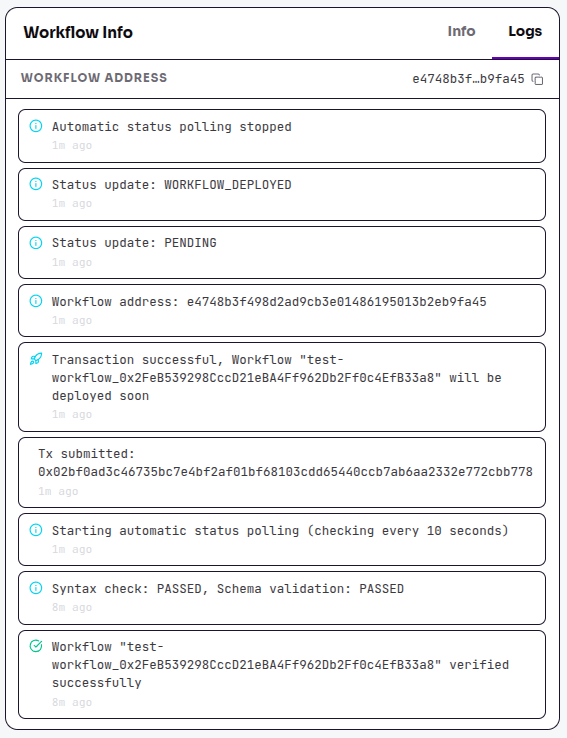
You may notice some deduction in Kwala credits associated with deploying your workflow onchain. These credits cover the cost of registering your workflow and enabling trigger monitoring on the network.
Next steps
Monitor workflow
Track your workflow execution status
Kwala Explorer
Explore workflows and executions on the network